
A USB cable is still useful when you need to move a huge folder, but for everyday photos, PDFs, screenshots, videos, and documents, plugging your phone into a PC every time feels unnecessary.
Android and Windows now give you several wireless ways to move files.
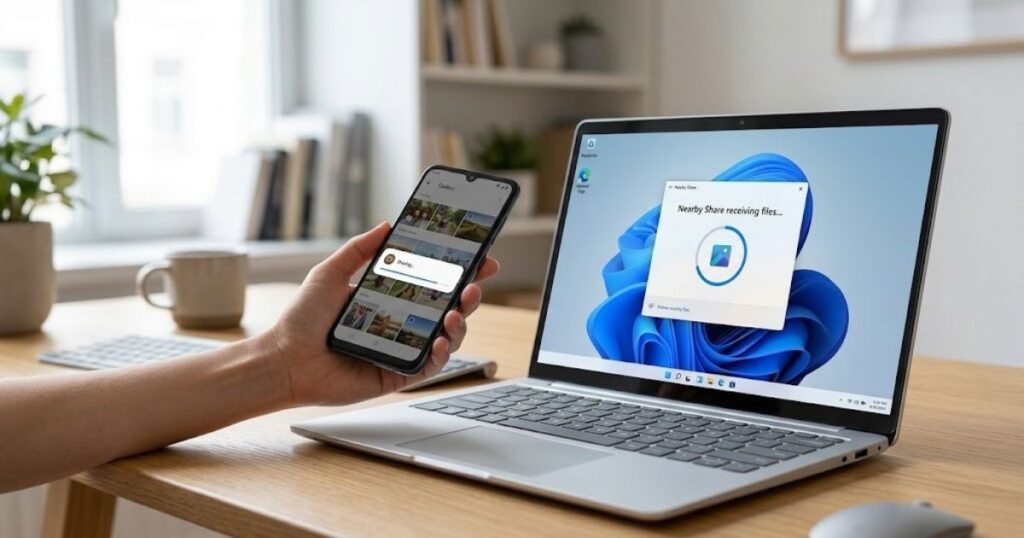
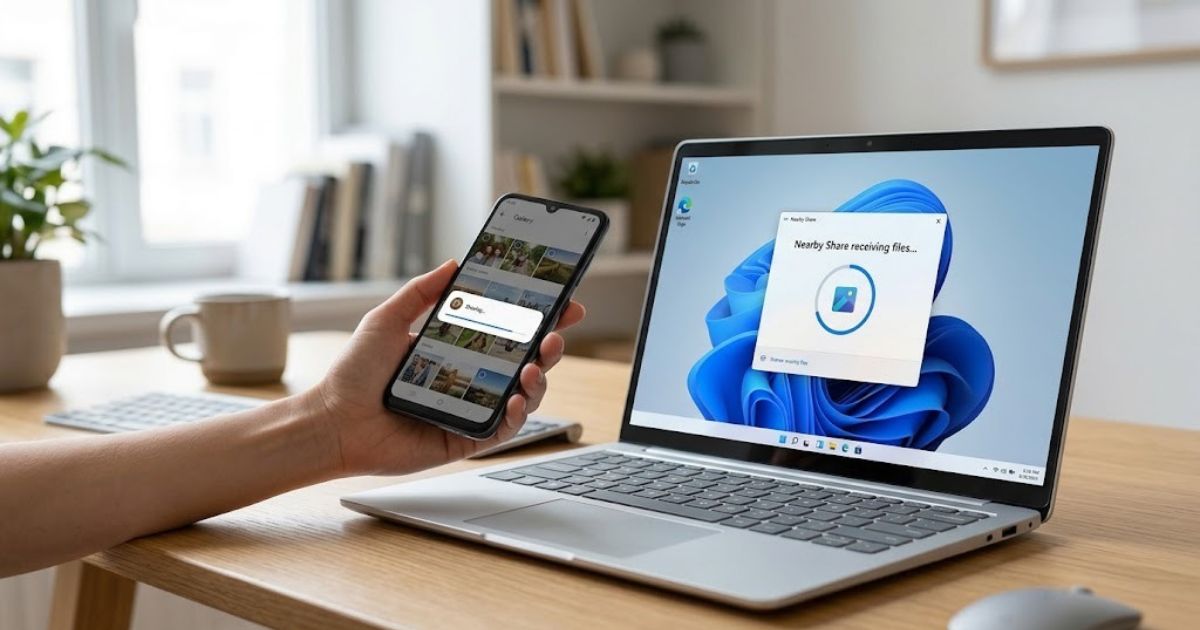
For most people, Quick Share is the easiest place to start. It lets nearby Android devices and compatible Windows PCs send files directly without emailing them to yourself or uploading everything to cloud storage first. Google says Quick Share can transfer images, videos, documents, files, and folders between nearby Android and Windows devices.
If you already use Microsoft’s Phone Link, that can also send files between your phone and Windows PC.
Here is how each method works and when to use it.
Quick answer
To transfer files from Android to a Windows PC without a cable:
- Install Quick Share for Windows on your PC.
- Turn on Wi-Fi and Bluetooth on both devices.
- Keep the phone and PC nearby.
- On Android, select a file and tap Share > Quick Share.
- Select your Windows PC.
- Accept the transfer if prompted.
Google currently recommends keeping the devices within about 5 metres (16 feet) and having Wi-Fi or Ethernet plus Bluetooth enabled.
Best wireless transfer methods at a glance
| Method | Best for | Internet required? | Setup |
|---|---|---|---|
| Quick Share | Photos, videos, files and folders nearby | Not for normal nearby transfer | Easy |
| Phone Link | Regular Android-to-Windows sharing | Uses device connectivity | Easy after pairing |
| Cloud storage | Files you need on several devices | Yes | Easy |
| Messaging/email | One or two small files | Yes | Very easy |
| Local network tools | Advanced or frequent transfers | Usually local Wi-Fi | Varies |
If you only want one recommendation, start with Quick Share.
Method 1: Use Quick Share
Quick Share is Google’s built-in nearby sharing system for Android.
On Windows, you install the Quick Share app and then your PC can appear as a nearby destination when you share something from your phone.
What you need
According to Google’s current requirements, Quick Share for Windows supports:
- a 64-bit Windows 10 or newer PC
- Android 6.0 or newer
- Bluetooth
- Wi-Fi or Ethernet
- nearby devices
ARM-based Windows devices require Windows 11 or newer. Google also notes that Samsung PCs use Samsung’s version of Quick Share from the Microsoft Store.
Step 1: Set up Quick Share on Windows
Install Quick Share for Windows from Google’s official source.
Open it and sign in with your Google Account if you want access to all sharing options.
You can then choose who is allowed to see your PC.
Google currently provides options such as:
- Everyone
- Contacts
- Your devices
- No one
For your own phone and PC, Your devices is the most private and convenient option if both devices use the same Google Account.
Step 2: Turn on Quick Share on Android
Open the photo, document, video, or other file you want to transfer.
Tap:
Share > Quick Share
Android should begin showing nearby compatible devices.
Google’s Android documentation confirms that Quick Share can be launched directly from the normal Android share menu.
Step 3: Select your computer
Your Windows PC should appear in the nearby device list.
Tap its name.
Depending on your settings, the computer may ask you to accept the transfer.
For devices signed into the same account, the process may require less interaction.
Step 4: Find the transferred file
Once the transfer finishes, open the destination folder shown by Quick Share on your PC.
For frequent transfers, it is worth checking the app settings so you know where received files are being saved.
That avoids the classic problem of successfully transferring a photo and then spending five minutes trying to find it.
How to send files from your PC back to Android
Quick Share works in both directions.
On Windows, open Quick Share and choose the file or folder you want to send.
You can also drag files into the Quick Share window.
Google says another option is to right-click a file and choose Send with Quick Share when available.
Choose your phone.
Accept the transfer on Android if required.
This is useful when you want to send:
- downloaded PDFs
- edited photos
- music
- documents
- wallpapers
- videos
You do not need to create a cloud link first.
Can Quick Share send folders?
Yes. Google’s Windows Quick Share interface allows you to select files or folders for sharing.
That makes it much more useful than sending files through email or chat when you have several related items.
For very large backups, however, a wired connection or dedicated backup method may still be more practical.
Method 2: Use Microsoft Phone Link
If your Android phone is already connected to Windows through Phone Link, you have another convenient wireless option.
Microsoft pairs the Phone Link app on Windows with Link to Windows on Android.
Its current file-sharing feature allows files to move in both directions.
Transfer files from Android to PC with Phone Link
On your Android phone:
- Find the file you want to send.
- Tap Share.
- Choose Link to Windows – Send to PC.
- Select your connected PC.
- Keep the transfer screen open until it finishes.
Microsoft says files received by the PC are stored by default in:
Downloads\Phone Link
The default folder can also be changed in Phone Link settings.
That predictable download location is one reason Phone Link can be convenient for regular file transfers.
Transfer files from PC to Android with Phone Link
On Windows:
- Select the file.
- Right-click it.
- Choose Share.
- Select Phone Link.
- Send it to your paired Android phone.
Microsoft says files received on Android are normally saved under:
Downloads > Sent from your PC
This works nicely if Phone Link is already part of your normal Windows setup.
If you have never configured Phone Link and only need occasional transfers, Quick Share is probably simpler.
Quick Share vs Phone Link: Which is better?
Neither is universally better. They solve slightly different problems.
Use Quick Share when:
- you want a simple nearby transfer
- you regularly send photos and videos
- you do not want a deeper phone-PC integration
- you want to send whole folders
- you use Google’s ecosystem
Use Phone Link when:
- your phone is already paired with Windows
- you also use phone notifications, calls, messages, or photos from your PC
- you frequently move individual files between the same phone and PC
For a first-time user who asks, “How do I send this photo to my laptop without a cable?”, Quick Share is the cleaner answer.
Method 3: Use cloud storage
Cloud storage is useful when your phone and PC are not beside each other.
Upload the file from Android to a service you already use, such as Google Drive, OneDrive, or another cloud platform.
Then open the same account on the PC and download it. This works especially well for documents you want available on several devices.
The downside is obvious: the file has to be uploaded and downloaded. If you are moving a large video while using a slow internet connection, nearby device sharing usually makes more sense.
Cloud storage is better when access matters more than transfer speed.
What about emailing the file to yourself?
It works. That does not mean it is the best method.
Email is fine when you need to move one PDF or small document and do not want to configure anything.
For multiple photos, larger videos, or repeated transfers, it quickly becomes awkward.
You end up creating an email draft simply to move a file between two devices sitting on the same desk.
Quick Share exists partly so you do not have to do that.
Can you transfer files without internet?
With nearby Quick Share, the important requirement is the local wireless connectivity between the devices rather than uploading the file to cloud storage.
Google requires Bluetooth and Wi-Fi or Ethernet to be enabled and recommends the devices remain nearby.
So it should not be confused with Google Drive. Quick Share is primarily a nearby device-transfer feature.
A cloud-storage transfer, by comparison, does require internet access because the file is uploaded to a remote service first.
Why isn’t my PC showing in Quick Share?
Start with the boring checks. They solve more problems than people expect.
Check Bluetooth
Bluetooth should be enabled on both devices. Google specifically includes Bluetooth as a requirement for Quick Share on Windows.
Check Wi-Fi
Turn Wi-Fi on for both devices. If your PC uses Ethernet, Quick Share can still work according to Google’s supported connectivity requirements.
Move the devices closer
Do not troubleshoot from opposite sides of the house. Google recommends keeping the devices within roughly five metres.
Put the phone beside the PC and try again.
Check visibility
Your PC may simply be set to No one. Open Quick Share settings and change device visibility to an appropriate option.
For your personal devices, Your devices is usually the cleanest choice.
Check Do Not Disturb
If the transfer seems to start but you never see an approval notification, notification settings can be the problem.
Google specifically recommends checking Windows notifications and Do Not Disturb/Focus settings when Quick Share notifications do not appear.
Restart Quick Share
Close the app and reopen it. If that fails, restarting both devices is still a surprisingly useful troubleshooting step.
Why is Quick Share slow?
Wireless transfer speed can vary.
File size, wireless hardware, interference, distance between devices, and network conditions can all affect the experience.
A few photos may transfer almost immediately.
A huge video library is a different job.
For very large collections, do not assume wireless is automatically the fastest option just because it is more convenient.
Sometimes a proper USB data cable is still the right tool.
The goal is not to eliminate cables from your life.
It is to stop needing one every time you want to move a screenshot.
What if your Android phone does not show Quick Share?
Search your Settings app for:
Quick Share
You can also open a photo or file, tap Share, and look for Quick Share there.
Google says Quick Share is available across Android devices, although some steps and settings can differ depending on Android version and manufacturer. Samsung Galaxy devices may present the feature somewhat differently.
Also check for Android system and Google Play system updates.
Is Quick Share secure?
Google says Quick Share transfers are encrypted.
When someone nearby sends you a file, you are normally asked to approve the transfer unless your device settings already establish that sender as trusted.
Still, do not leave your device visible to everyone indefinitely.
If you are in an airport, university, café, or office, switch visibility back to Your devices, Contacts, or No one when you finish.
Convenience does not require broadcasting your PC to everyone around you all day.
Can I transfer photos from Android to PC wirelessly?
Yes. Quick Share is one of the easiest ways.
Open the photo in your gallery, tap Share, choose Quick Share, and select the PC.
Phone Link is another option if the phone and computer are already paired.
Can I transfer videos wirelessly?
Yes. Quick Share supports videos as well as photos and documents.
Large videos naturally take longer than small photos.
Keep the devices close together during the transfer and avoid disabling Wi-Fi or Bluetooth until it finishes.
Can I transfer files from Android to an old PC?
Possibly. Quick Share’s current Windows requirements include a 64-bit version of Windows 10 or newer, with additional conditions for ARM systems.
If the old computer cannot meet those requirements, cloud storage or another network-based method may be easier.
And if that older machine is still sitting around after you replace it, you may also be able to use an old laptop as a second monitor instead of leaving it unused.
What if you use Linux instead of Windows?
Google’s official Quick Share for Windows app is aimed at Windows PCs.
Linux users generally need different network-sharing tools or browser/cloud-based methods.
If Linux itself is new to you, start with our Linux for beginners guide before adding more complicated networking tools to your setup.
The simplest solution is often the one you can troubleshoot yourself later.
Frequently asked questions
How do I transfer files from Android to PC without USB?
Use Quick Share, Microsoft Phone Link, or cloud storage. Quick Share is particularly convenient for nearby Android and Windows devices because files can be shared directly through the Android share menu.
What is the easiest way to transfer photos from Android to Windows wirelessly?
For most users, Quick Share is one of the easiest options. Install Quick Share on Windows, enable Bluetooth and Wi-Fi, select the photos on Android, and choose your computer from Quick Share.
Does Quick Share work between Android and Windows?
Yes. Google officially supports Quick Share between compatible Android devices and Windows PCs.
Does Quick Share require Bluetooth?
Google lists Bluetooth as a requirement alongside Wi-Fi or Ethernet for Quick Share between Android and Windows.
Can I send an entire folder from PC to Android?
Quick Share for Windows allows users to select files or folders before sharing.
Where do Phone Link files save on Windows?
Microsoft says files received through Phone Link are saved by default in the Downloads\Phone Link folder.
Is wireless transfer better than USB?
For everyday photos and documents, wireless transfer is usually more convenient. For very large backups or huge video libraries, a wired transfer may still be faster and more reliable.
Final thoughts
You should not need to find a USB cable every time you want one photo from your phone.
For Android and Windows, start with Quick Share.
Once it is set up, transferring a file becomes roughly what you would expect: tap Share, choose the computer, and send it.
If you already use Phone Link, that works well too.
Cloud storage still has a place when the devices are far apart or when you want files available everywhere.
Pick the method based on the job.
A screenshot does not need a complicated workflow.
And a 50GB photo archive probably deserves more than emailing files to yourself one attachment at a time.