
Most AI tools feel like websites.
You type something, your request travels to somebody else’s servers, a model processes it, and the answer comes back.
A local LLM changes that arrangement.
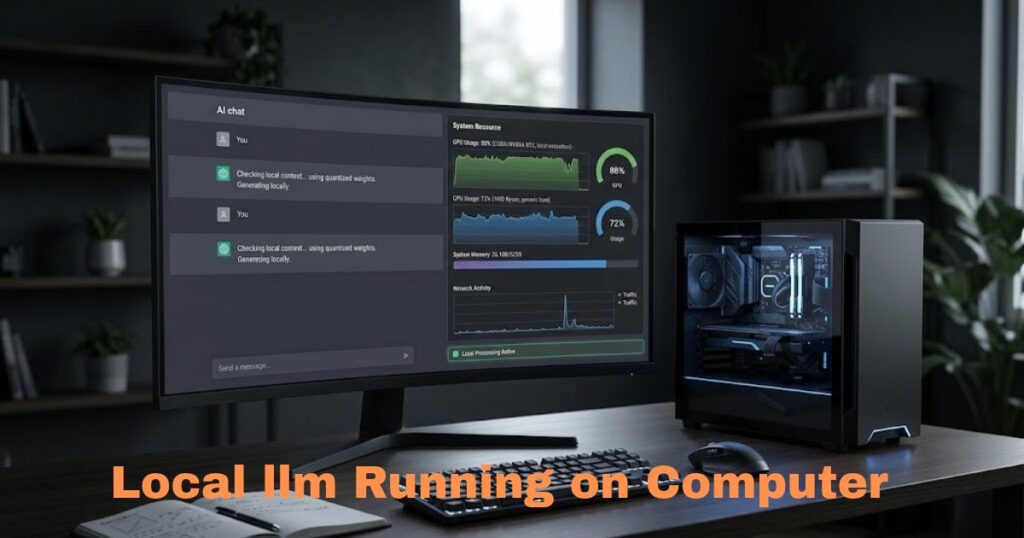
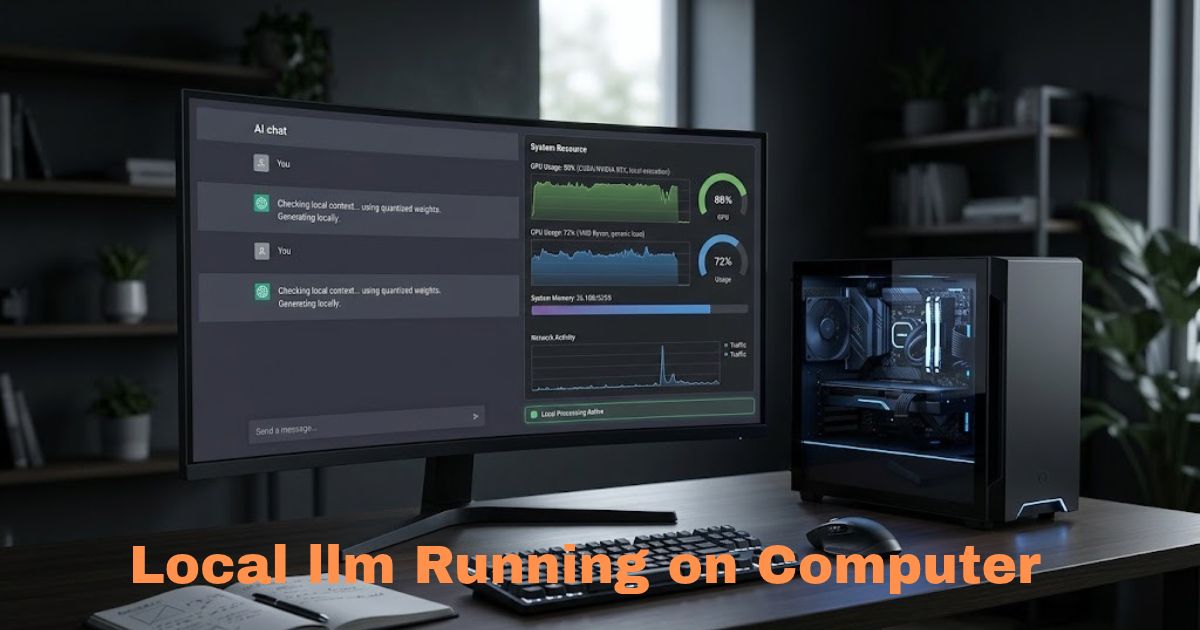
Instead of relying entirely on a remote AI service, you download a compatible language model and run it on your own computer. Your laptop or desktop provides the CPU, GPU, and memory needed to generate the response.
That sounds like something reserved for developers with expensive hardware, but local AI has become much more accessible. Desktop tools such as LM Studio can download and run models through a normal graphical interface, while Ollama and llama.cpp give developers more control from the command line. LM Studio currently supports local models such as Qwen, Gemma, Llama, Mistral, DeepSeek, and OpenAI’s gpt-oss family.
You still need to choose a model your computer can actually handle.
That is the part that matters more than downloading the biggest model you can find.
What is a local LLM?
A local LLM is a large language model whose model weights and inference process run on hardware you control rather than relying entirely on a remote hosted API.
In practical terms, that can mean:
- downloading an AI model to your computer,
- loading it into RAM or GPU memory,
- opening a chat interface,
- asking questions,
- generating the response on your machine.
Once the required software and model files are downloaded, some setups can work without an internet connection.
LM Studio, for example, documents support for fully offline operation once the necessary model files are already available locally.
Does local LLM mean open source?
Not necessarily.
You will see terms such as:
- open source
- open model
- open weights
- local model
used as though they all mean exactly the same thing.
They do not. For local inference, the important requirement is that you can obtain model weights in a format supported by your runtime.
The license attached to those weights determines what you are actually allowed to do with them.
For example, OpenAI’s gpt-oss models are released as open-weight models under the Apache 2.0 license and are designed to run on infrastructure controlled by the user.
Always check the license of the specific model you plan to deploy, particularly for commercial use.
Why would you run an LLM locally?
There is no single reason.
Different users care about different benefits.
More control over your data
When inference genuinely stays on your computer, prompts and generated responses do not need to be sent to a remote inference provider.
This can be useful when working with:
- private notes
- internal documents
- unpublished writing
- source code
- research material
- business files
But there is an important qualification.
A local model is only fully local if the workflow around it is also local.
If your AI application calls an online search engine, external API, remote MCP server, cloud model, telemetry service, or another web-connected tool, some information may still leave the computer.
So do not assume that installing a local model automatically makes every connected workflow private.
No per-message API bill
Once you already own the hardware, running a model locally does not normally charge you based on every prompt or token generated.
You are still paying indirectly through:
- electricity
- hardware
- storage
- your time
- potential upgrades
For regular personal experimentation, however, it can be convenient to run a model repeatedly without watching an API usage counter.
Offline access
An offline-capable local setup can continue working when your internet connection is unavailable.
That can be useful while travelling, working in restricted environments, or simply using tools that do not need the web.
More experimentation
Local models let you experiment with model files, quantizations, context settings, system prompts, local APIs, document retrieval, and integrations without treating every test as a hosted API request.
That flexibility is one reason developers use tools such as llama.cpp and Ollama.
What can you do with a local LLM?
The obvious use is chat, but that is only the beginning.
Depending on the model and software, you can use local AI for:
- summarizing text
- rewriting drafts
- brainstorming
- coding assistance
- extracting information
- classifying text
- searching private documents
- generating structured output
- running local agents
- creating an API for another application
LM Studio can expose local models through REST, Python, TypeScript, and compatibility endpoints, including an OpenAI-compatible API.
llama.cpp can also launch a local server and expose an OpenAI-compatible API while running supported model files on your hardware.
This means a local model does not have to live inside one chat application.
You can build other software around it.
What hardware do you need for a local LLM?
This is where beginner guides often become unnecessarily complicated.
You do not need to memorize every GPU specification.
Start with one rule:
The model needs to fit comfortably within the memory available to the runtime.
That may involve:
- system RAM,
- GPU VRAM,
- unified memory on Apple Silicon,
- or a combination of CPU and GPU resources.
RAM matters
When a model is loaded, its weights consume memory.
LM Studio describes model loading as allocating memory for the model’s weights and related data.
A smaller or more heavily quantized model usually needs less memory than a large high-precision model.
You also need headroom for the operating system, context window, cache, applications, and other processes.
A GPU helps, but it is not always mandatory
Local models can run on CPUs.
They may simply respond more slowly.
llama.cpp is specifically designed to support inference across a wide range of hardware and can use CPUs, NVIDIA CUDA, AMD-related backends, Vulkan, Apple Metal, and CPU/GPU hybrid inference depending on the setup.
That makes local AI possible on more machines than the phrase “AI workstation” might suggest.
Large models still need large amounts of memory
A good example is OpenAI’s gpt-oss family.
OpenAI says gpt-oss-20b can run with about 16 GB of memory, while gpt-oss-120b is designed to fit within approximately 80 GB of memory.
That difference shows why model size matters.
A model that works on somebody else’s desktop may be completely impractical on your laptop.
What is quantization?
You will encounter names such as:
Q4
Q5
Q8
when downloading local models.
These usually refer to different quantization approaches.
Quantization reduces the precision used to represent model weights, which can substantially reduce memory and storage requirements.
The trade-off is that stronger compression may affect model quality.
llama.cpp supports numerous quantization levels and uses the GGUF model format for local model files.
Should a beginner use a quantized model?
Usually, yes. You probably do not need the largest full-precision version of a model just to experiment with local AI.
A reasonable quantized version can make the difference between:
- a model that fits your hardware,
and
- a model that refuses to load.
Start smaller.
If performance and memory usage are comfortable, you can test larger versions later.
Three popular ways to run a local LLM
There are many local AI tools, but beginners do not need to try ten of them.
Three names cover a large portion of common local workflows:
1. LM Studio
LM Studio is the easiest starting point if you prefer a graphical desktop application.
It currently supports Windows, macOS, and Linux and lets you search for, download, load, and chat with local models from its interface.
Why beginners may prefer LM Studio
You can:
- browse models,
- download them,
- load a model,
- chat through a GUI,
- inspect resource requirements,
- run a local API server.
You do not have to learn terminal commands before having your first conversation with a model.
Basic LM Studio workflow
- Install LM Studio.
- Open the Discover section.
- Search for a model.
- Download a version appropriate for your hardware.
- Open the Chat section.
- Load the model.
- Start chatting.
LM Studio’s official getting-started guide follows essentially this workflow.
For current setup instructions, use the official LM Studio documentation. LM Studio documentation
2. Ollama
Ollama is especially popular when you are comfortable using a terminal or want a local model to integrate with other tools.
Its ecosystem now supports local models, APIs, coding integrations, and optional cloud models.
That final point matters.
Not everything shown inside Ollama necessarily runs locally.
If you specifically want local inference, make sure you select a locally downloaded model rather than one marked as a cloud model. Ollama documents local and cloud model options separately.
Why use Ollama?
Ollama is useful when you want:
- simple command-line model management,
- local API access,
- coding integrations,
- scripting,
- a lightweight developer workflow.
It also supports numerous open models and has continued expanding its local hardware support. In June 2026, Ollama added broader GGUF compatibility through llama.cpp and enabled Vulkan by default for wider GPU acceleration support.
For official releases and documentation, use Ollama’s own site rather than relying on an old third-party tutorial. Ollama official site
3. llama.cpp
llama.cpp is a lower-level option with a strong focus on efficient local inference.
It is particularly useful if you want more control or are building your own local setup rather than using a polished desktop chat application.
llama.cpp supports running GGUF models directly and can download compatible models from Hugging Face through its command-line interface.
Who is llama.cpp for?
Consider it if you:
- like working in the terminal,
- want fewer layers between yourself and the model,
- need custom deployment,
- want to benchmark models,
- are building software around local inference.
A complete beginner can use it.
But if your goal is simply “I want to talk to a local AI model tonight,” LM Studio may involve less setup.
How to choose your first local model
Do not start by asking:
What is the smartest model available?
Ask: What useful model can my computer run comfortably?
Start with your available memory
Check how much RAM or unified memory the machine has.
If you have a dedicated GPU, check its VRAM too.
Then compare those limits with the model size and runtime recommendations.
Avoid filling nearly all available memory just because the model technically loads.
Your operating system still needs room to work.
Choose a model for the task
A small fast model can be perfectly useful for:
- summarization,
- rewriting,
- simple questions,
- classification,
- light coding.
A larger reasoning or coding model may be more useful for difficult programming and analysis, but it demands more resources.
Model size alone also does not guarantee that one model will outperform another on every task.
Examples of model families you may encounter
Current local AI tools commonly support families including:
- Qwen
- Gemma
- Llama
- Mistral
- DeepSeek
- gpt-oss
LM Studio’s current documentation explicitly lists these among model families that can be run locally.
The list changes quickly, so avoid choosing a model solely because an article from two years ago called it “the best local LLM.”
How to run a local LLM with LM Studio
For a first experiment, this is one of the simplest approaches.
Step 1: Install LM Studio
Download the application for your operating system.
LM Studio currently supports macOS, Windows, and Linux.
If Linux itself is new to you, read our Linux for beginners guide first rather than combining two learning curves at once.
Step 2: Find a model
Open the model discovery interface.
Search for a model family you want to try.
Look at the available versions and file sizes.
Do not automatically select the biggest one.
Step 3: Download the model
Model files can consume several gigabytes or substantially more, depending on model size and quantization.
Make sure you have enough disk space before downloading several versions just to compare them.
Step 4: Load the model
Open Chat and select the downloaded model.
LM Studio loads the model into the available memory before inference begins.
If loading fails because of memory limits, move to a smaller or more compressed version.
Step 5: Start with a simple prompt
Do not benchmark your first model with an enormous research task.
Try something straightforward:
Explain DNS in simple language.
Then test:
- rewriting,
- summarization,
- coding,
- structured output,
- longer context.
That tells you more about whether the model fits your needs.
Can an old laptop run a local LLM?
Possibly.
But expectations matter.
An older computer with limited RAM and no useful GPU acceleration may still run a small quantized model.
The response speed may be far below what you are used to from a cloud AI service.
If the laptop is too old for useful local inference, it may still have another purpose. Our guide on how to use an old laptop as a second monitor covers one practical alternative.
Do not upgrade an old machine specifically for AI before comparing that cost with a newer computer.
Local LLM vs cloud AI
Neither approach wins every category.
Local LLM advantages
Local inference can offer:
- greater data control,
- offline use,
- customization,
- predictable local availability,
- no per-token hosted inference charge.
Cloud AI advantages
Hosted systems usually offer:
- access to much larger models,
- less hardware setup,
- faster performance on weak computers,
- easier scaling,
- less maintenance.
The right choice may actually be both.
Use local models for private or lightweight work and hosted models when you need capabilities your hardware cannot provide.
Is a local LLM completely private?
Only if the entire workflow stays local.
That distinction is worth repeating.
A model can run on your computer while the surrounding software still connects to:
- cloud search,
- analytics,
- external tools,
- remote APIs,
- cloud inference,
- hosted embeddings,
- synchronization services.
Review the software settings and documentation rather than relying on the word “local” in a product description.
For highly sensitive information, also think about normal computer security.
A local model does not protect your data if the laptop itself is compromised.
Can a local LLM search the internet?
Not by itself.
A basic language model generates output from the context you provide and what it learned during training.
To retrieve current information, the surrounding application needs to connect it to a search system, web browser, API, or another retrieval tool.
At that point, part of the workflow is no longer offline.
That is not necessarily bad.
It simply needs to be understood.
Can you chat with your own documents locally?
Yes.
A common approach is called retrieval-augmented generation, or RAG.
Instead of retraining the model on your documents, software retrieves relevant chunks of your files and provides them to the model as context.
LM Studio supports chatting with documents locally and describes the feature as an offline-capable document workflow.
This can be useful for:
- notes,
- manuals,
- research papers,
- internal documentation,
- personal archives.
The quality still depends on the model, retrieval method, document parsing, context length, and prompts.
Can you build apps with a local LLM?
Yes.
This is one of the more interesting uses.
LM Studio can run a local server with REST APIs and compatibility endpoints.
llama.cpp also provides local server functionality.
That means your application can send prompts to a model running on your own machine.
Potential projects include:
- private writing assistants,
- local coding tools,
- document search,
- classification systems,
- personal knowledge bases,
- offline utilities.
For development, a local server can be particularly convenient because you can experiment without sending every request to a paid hosted API.
Common mistakes when starting with local AI
Downloading the biggest model first
Bigger is not useful if it barely fits in memory and produces one painfully slow response every few minutes.
Start with a model that leaves your computer comfortable.
Ignoring quantization
The same model may be available in several different formats and sizes.
Choosing an appropriate quantized version can dramatically change whether the model runs well on your machine.
Assuming local models know current information
A locally downloaded model does not automatically know what happened this morning.
Its built-in knowledge depends on its training data.
For live information, it needs an external retrieval system.
Treating every local model as trustworthy
Models can still hallucinate.
Running the weights on your own GPU does not make their answers automatically accurate.
Verify important technical, financial, medical, legal, or factual claims with appropriate sources.
Installing too many tools at once
You do not need Ollama, LM Studio, llama.cpp, five chat frontends, three vector databases, and four agent frameworks on your first day.
Choose one runtime.
Choose one model.
Learn how it behaves.
Expand from there.
Frequently asked questions
What does local LLM mean?
A local LLM is a language model that performs inference on hardware you control, such as your laptop, desktop, workstation, or private server, rather than relying entirely on a remotely hosted model.
Can I run an LLM on my laptop?
Yes, if you choose a model appropriate for your hardware. Smaller quantized models can run on many consumer computers, while larger models require substantially more memory and may benefit from powerful GPUs.
What is the easiest way to run an LLM locally?
For users who prefer a graphical interface, LM Studio is one of the simpler options because it combines model discovery, downloading, loading, chatting, and local API serving in one application.
Is Ollama completely local?
Ollama can run models locally, but it also offers cloud models. Check which model you are actually using if keeping inference on your machine is important.
What is GGUF?
GGUF is a model file format used by llama.cpp and compatible local inference tools. llama.cpp requires compatible model files in GGUF format for its standard local model workflow.
Can I run ChatGPT locally?
ChatGPT itself is a hosted OpenAI product and is not something you download as a local application model. OpenAI does, however, publish separate open-weight gpt-oss models that can run on user-controlled infrastructure.
How much RAM do I need for a local LLM?
There is no single number because requirements depend on model size, quantization, context, runtime, and hardware architecture. Check the particular model’s memory requirements rather than relying on a universal RAM recommendation.
Do local LLMs need the internet?
Not necessarily after the software and model files are installed. Some local runtimes can operate offline. Internet access becomes necessary when you use online search, cloud models, remote APIs, or other connected services.
Final thoughts
The easiest way to understand local AI is to stop thinking of it as one product.
- It is a stack.
- You have a model.
- You have software that runs the model.
- You have hardware that determines how quickly it runs.
- Then you decide whether to connect that model to documents, code editors, APIs, web search, or other tools.
- For a beginner, keep the first setup boring.
- Install one runtime such as LM Studio.
- Download a model that comfortably fits your computer.
- Ask it a few real questions.
Only then start worrying about APIs, agents, RAG, quantization benchmarks, and everything else.
A smaller model that runs reliably on your machine is far more useful than a giant model you cannot actually load.